Connect your AI assistant to DataPro360
DataPro360 has no AI of its own. If you use Claude or ChatGPT, you can connect it to your DataPro360 account so it can read the parts of your open file you permit, stage comparable sales into your Load Data list, and propose text or files for you to accept or discard — and you decide every adjustment.
What it can and cannot do
A connected assistant reads, drafts, stages and proposes. It can read the parts of your open file you have permitted, live from this machine — nothing is stored on our servers; it can stage comparable sales into your Load data list; and it can propose text or files to your library review shelves, where they wait on your accept or discard. It cannot decide an adjustment, write into your analysis, or see anything you have not switched on. The full account — what each read returns, and what the assistant can never do — is on Can an AI assistant help me with an appraisal?
Before you start
You need a DataPro360 account. Reads are answered live by your open DataPro360 tab — the app must be open with your file loaded, or a read has nothing to ask. Staging and proposals work without it: they wait in your account until you pull them in or accept them. And every read starts switched off; connecting grants nothing to read.
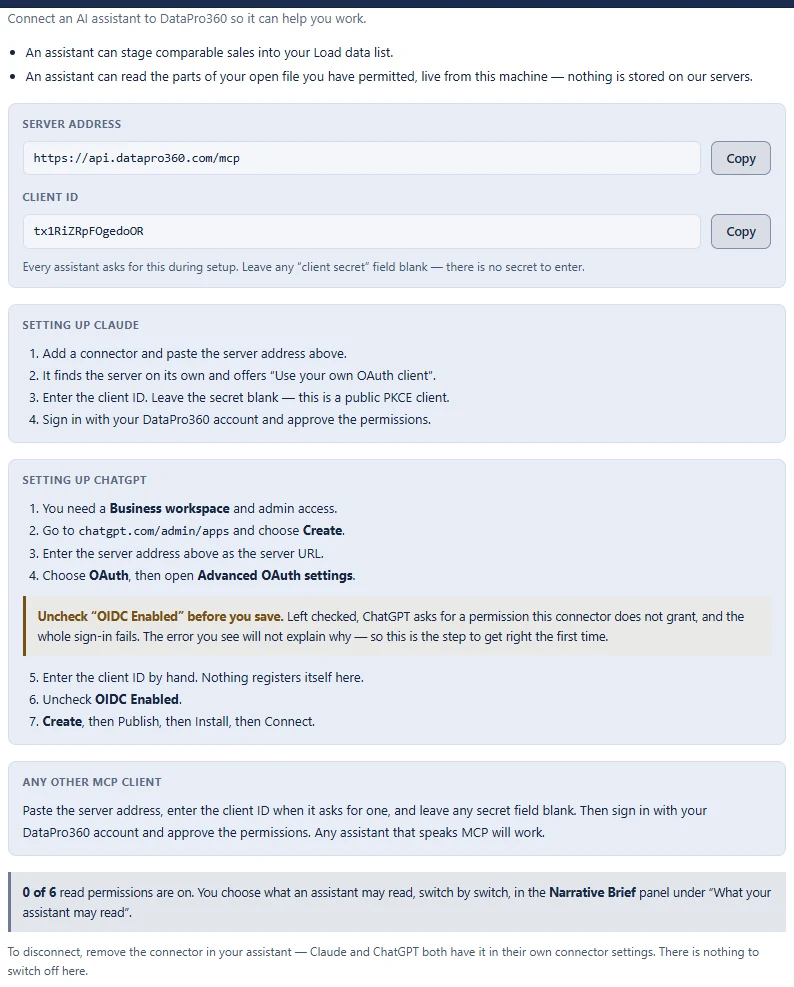
Setup uses two values, both shown in the app under Settings → Connections with their own copy buttons:
- Server address:
https://api.datapro360.com/mcp - Client ID:
tx1RiZRpFOgedoOR
Every assistant asks for this during setup. Leave any "client secret" field blank — there is no secret to enter.
Connect Claude
- Add a connector and paste the server address above.
- It finds the server on its own and offers "Use your own OAuth client".
- Enter the client ID. Leave the secret blank — this is a public PKCE client.
- Sign in with your DataPro360 account and approve the permissions.
Connect ChatGPT
- You need a Business workspace and admin access.
- Go to
chatgpt.com/admin/appsand choose Create. - Enter the server address above as the server URL.
- Choose OAuth, then open Advanced OAuth settings.
Uncheck "OIDC Enabled" before you save. Left checked, ChatGPT asks for a permission this connector does not grant, and the whole sign-in fails. The error you see will not explain why — so this is the step to get right the first time.
- Enter the client ID by hand. Nothing registers itself here.
- Uncheck OIDC Enabled.
- Create, then Publish, then Install, then Connect.
Any other MCP client
Paste the server address, enter the client ID when it asks for one, and leave any secret field blank. Then sign in with your DataPro360 account and approve the permissions. Any assistant that speaks MCP will work.
To disconnect, remove the connector in your assistant — Claude and ChatGPT both have it in their own connector settings. There is nothing to switch off in DataPro360.
Choose what your assistant may read
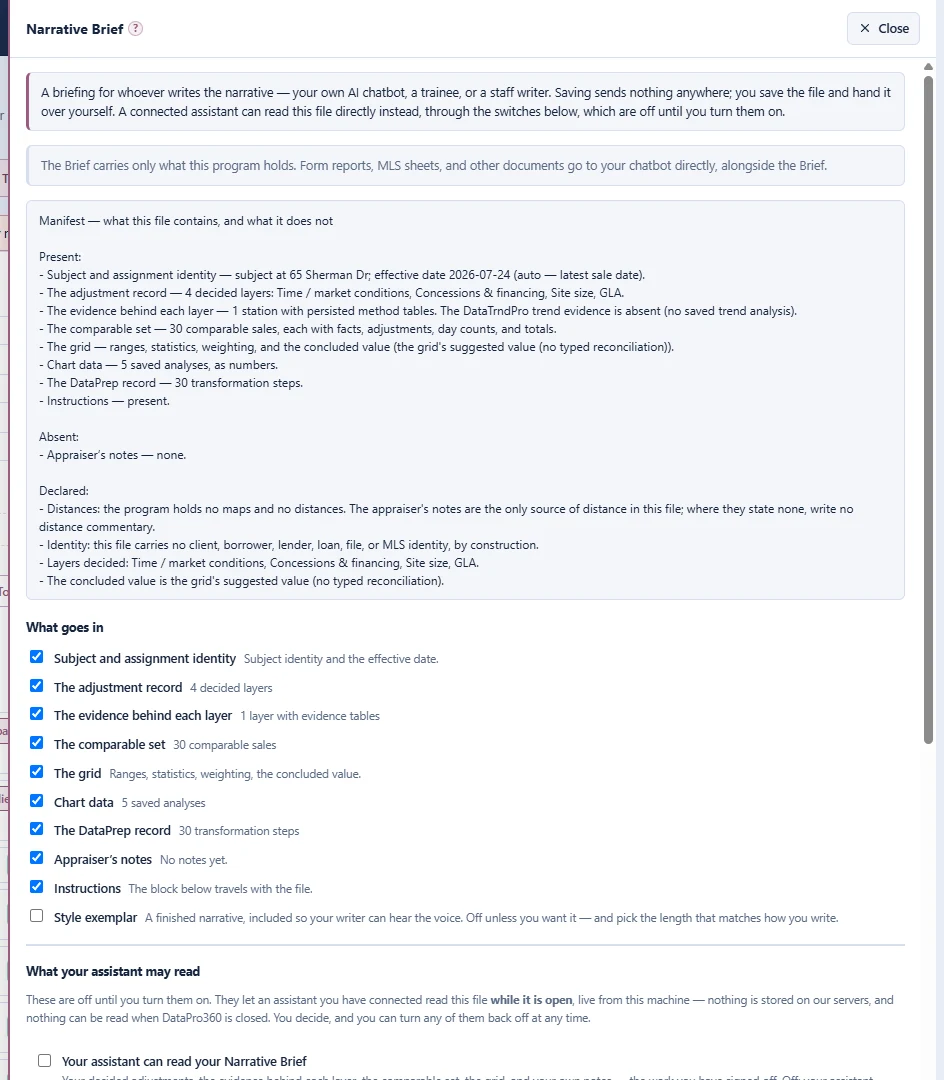
Connecting grants nothing to read. What an assistant may see is decided switch by switch in the Narrative Brief panel, under "What your assistant may read" — the default is Nothing, and only the appraiser can change it. Three levels set the switches together, in the panel's own words:
- Nothing. "Your assistant reads nothing from this file. It can still help you write — you tell it what it needs to know. Every file starts here, and stays here until you choose otherwise."
- Your decided work. "Your Narrative Brief, your Comp Grid, your comp detail pages, your Subject Property page, your report outline and the text you have written in it, and a list of the photos your report carries. The conclusions you have reached and the words you have written — not the sales data underneath them. Left closed: the evidence behind each adjustment, the comparable sales rows themselves, and the record of how you prepared them."
- Everything. "Everything above, and the evidence underneath it: the method-by-method working behind each adjustment layer, your ratio study, your DataTrndPro analyses, the numbers behind every saved analysis, the comparable sales both as you prepared them and as they were originally loaded, and your DataPrep record. MLS listing numbers are the one thing this does not include — they travel only if you turn on the switch for them under Advanced."
Under Advanced — choose individually, every read can be turned on or off on its own, whatever level is chosen — and if a new read is added to DataPro360 later it starts off, whichever level you are on, and you decide about it then. The MLS listing number is behind its own fence: the switch is named "Your assistant can read the MLS listing number on each comparable sale," it is off by default, and no level and neither the All nor the None button touches it — only its own switch, turned by you.
Things to ask
- Read my Comp Grid and tell me which comparable carries the largest gross adjustment.
- Draft the market-conditions paragraph from my Narrative Brief, using my decided rate.
- What does the evidence at the GLA station actually show, method by method?
- Pull these MLS numbers and stage them into DataPro360: [numbers].
- Propose this paragraph to my Text Library.
- What DataPrep steps were run on this file, and with what settings?
If something goes wrong
The connector refuses in plain words rather than answering empty. The three messages you will actually meet, in the server's own text:
- "No live DataPro360 session." The full message continues: "Reads are answered by the appraiser's own open browser, so there is nothing to ask: either DataPro360 is not open, or another device holds the session. Nothing is cached server-side, so there is no older copy to fall back to." What to do: open DataPro360 in your browser and try again.
- "No file is loaded in DataPro360." The message continues: "The session is live, but nothing is open in it — this is a statement about the session, not an empty result." What to do: open your assignment file in the app.
- "The appraiser has not granted this read." The message continues: "In DataPro360 the Narrative Brief panel carries one switch per read under 'What your assistant may read', every one off until they turn it on. This one is off. Only they can change it." What to do: turn the switch on in the Narrative Brief panel, then ask again.
Your data
Nothing is read until you switch it on, and text or files an assistant proposes wait in your account only until you accept or discard them — and are removed after thirty days if you do neither. Anything an assistant reads is governed by your own provider's terms; ours are in the privacy policy.
USPAP Advisory Opinion 41, adopted by the Appraisal Standards Board in April 2026, does not prohibit AI. It says confidential information and assignment results should not go into a tool unless the appraiser can take reasonable steps to keep them from unauthorized access. The read switches are those steps: nothing is shared until you turn it on, and you can switch any read off at any time. Whether and how you use an assistant remains your professional judgment.